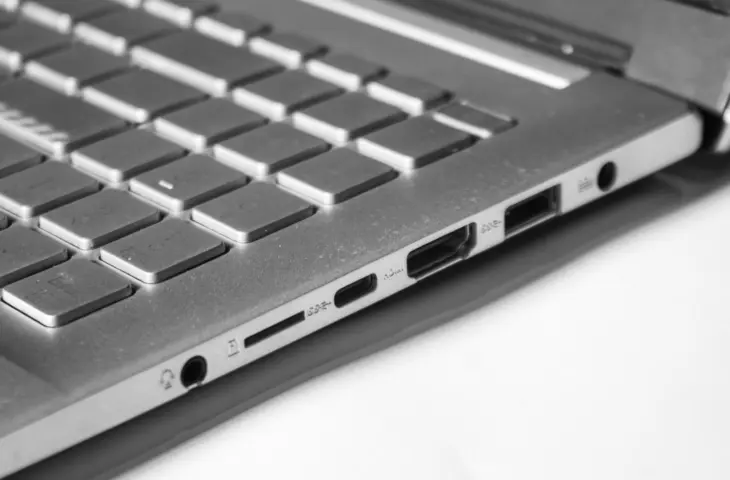
Laptop ports: there are many different types. In this overview, we’ll refresh the most popular ones and their functions.
Modern laptops are equipped with either a number of connections or just one or two, as with some extremely thin laptops. But how do you know what all those ports actually do? And which are important when you’re looking for a new laptop? Laptop ports are usually located on the sides or back. They give your laptop extra functions and allow you to connect peripherals, such as input devices, external storage, network connections, and displays.
In this article, we explain all the ports, old and new, so you know what they are for and how to recognize them. This will help you avoid surprises and make the best choice when buying a laptop.
read also
HDMI, DisplayPort or USB-C: the World of Video Connections Explained
3.5 mm audio jack
The 3.5 mm audio jack, also known as ‘klink’ in Dutch, used to be a popular port. It is used for audio input and output, and wired earphones or headphones can be connected to the laptop. In the past, every laptop or PC had two audio ports: one for audio and one for the microphone. These functions are now combined into one port.
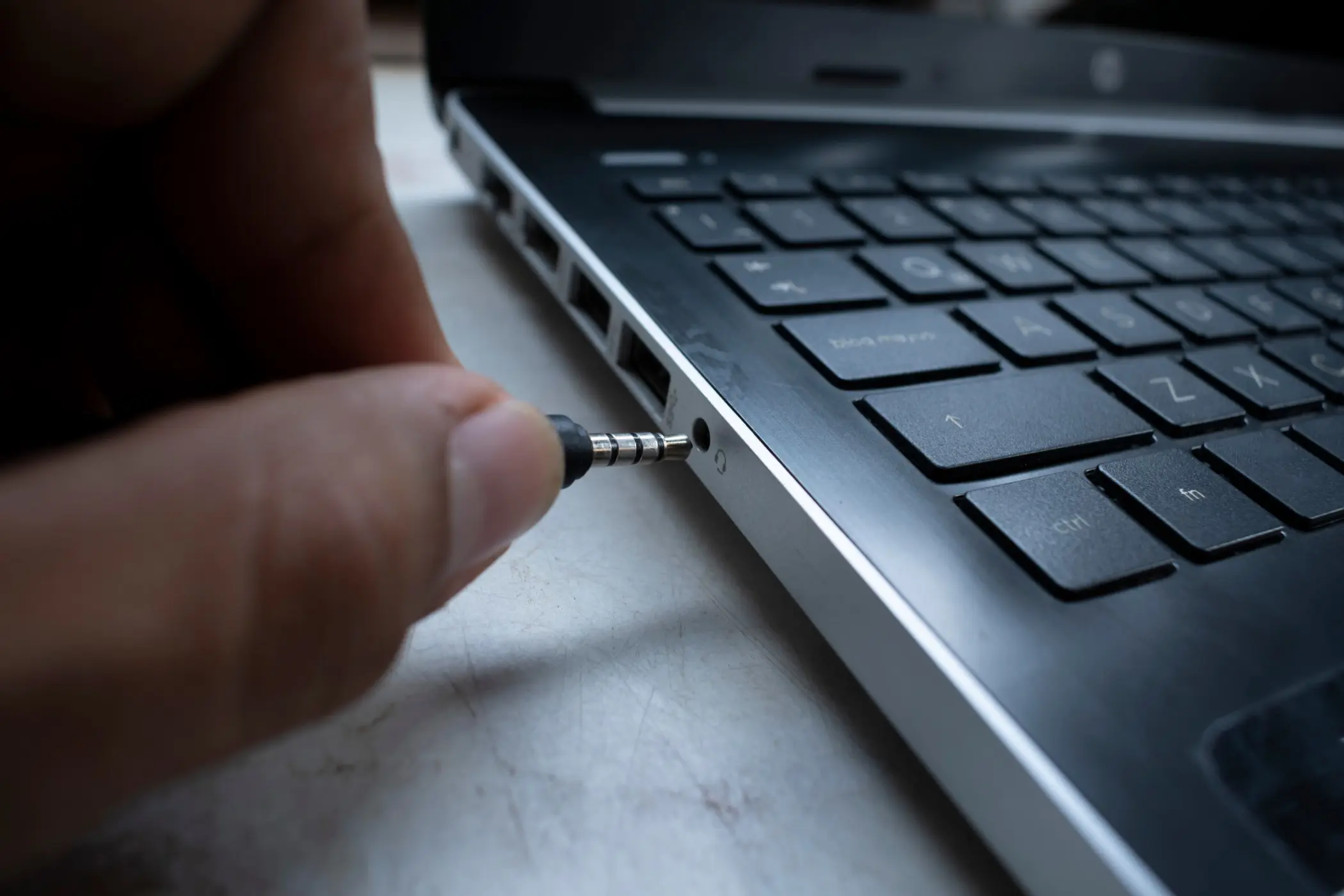
Nowadays, the port is often omitted because many users use wireless or Bluetooth headphones. An extra USB(-C) port to connect that headset is now more often the chosen option over the 3.5 mm audio jack. The more USB-C ports, the happier everyone is. And even then, you can buy a USB-C-to-3.5-mm adapter.
DisplayPort
DisplayPort is the best solution for graphic professionals and developers. The current standard, DisplayPort 2.1, supports up to 80 Gbps and is therefore comparable to HDMI 2.2. An important difference is that DisplayPort supports higher resolutions and refresh rates.
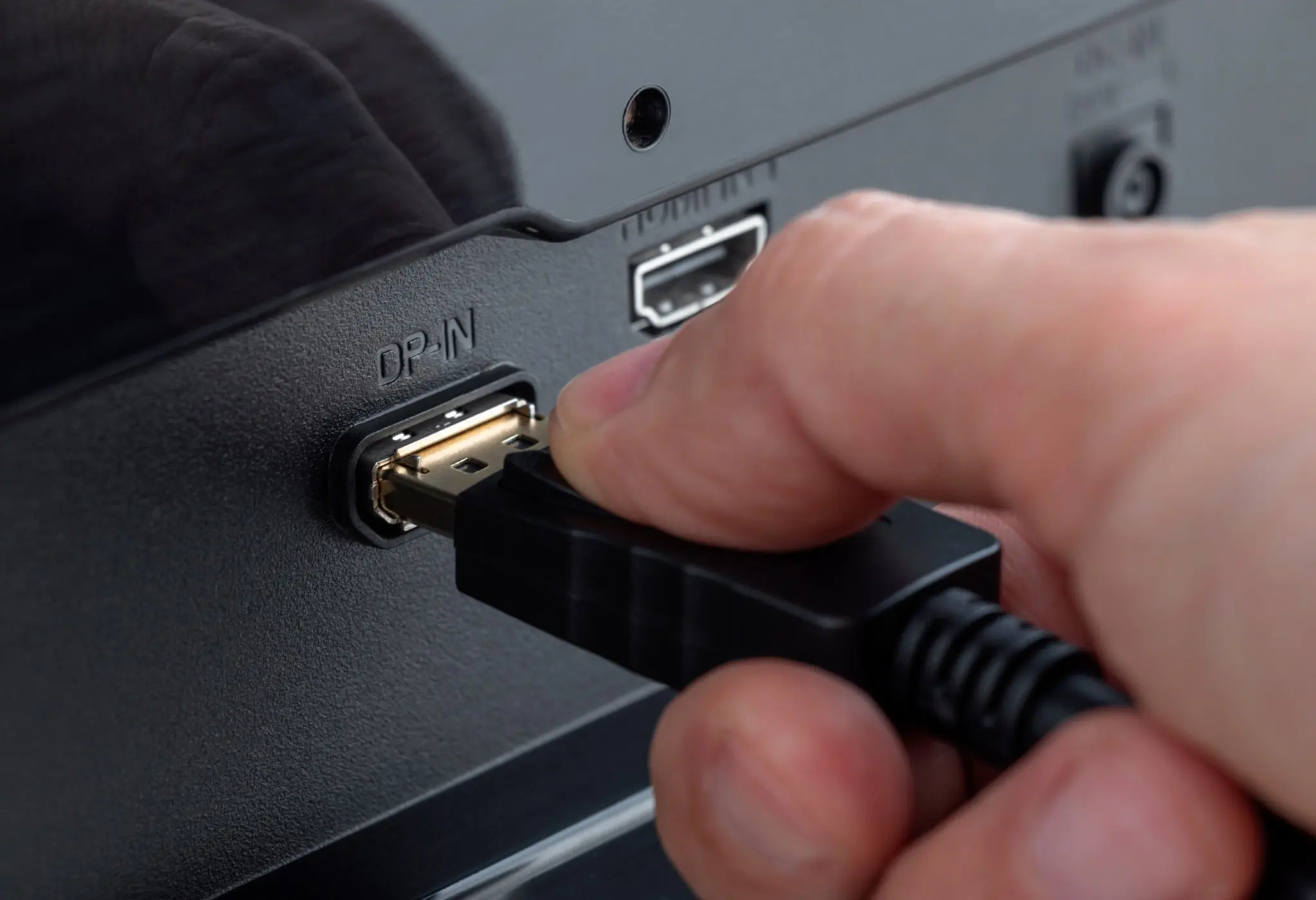
DisplayPort offers some advantages that HDMI does not. For example, it supports daisy chaining: connecting multiple monitors with one cable. The exact number depends on your graphics card; most support up to three or four monitors. DisplayPort does not transmit audio by default, but some drivers make this possible.
read also
From USB to Ethernet: laptop connections explained
With DisplayPort Alt Mode via USB-C, you can send video signals, data, and electricity through one cable. Not every USB-C port or cable is suitable for this. The possibilities depend on which device you use. Although they look visually universal, that is not the case in practice.
Ethernet
The Ethernet port provides a more stable internet connection than Wi-Fi. Why is that? You connect the cable directly to the modem, so the signal is always stronger than with a wireless connection. These ports are also becoming less common on laptops because Wi-Fi is almost always stably available.
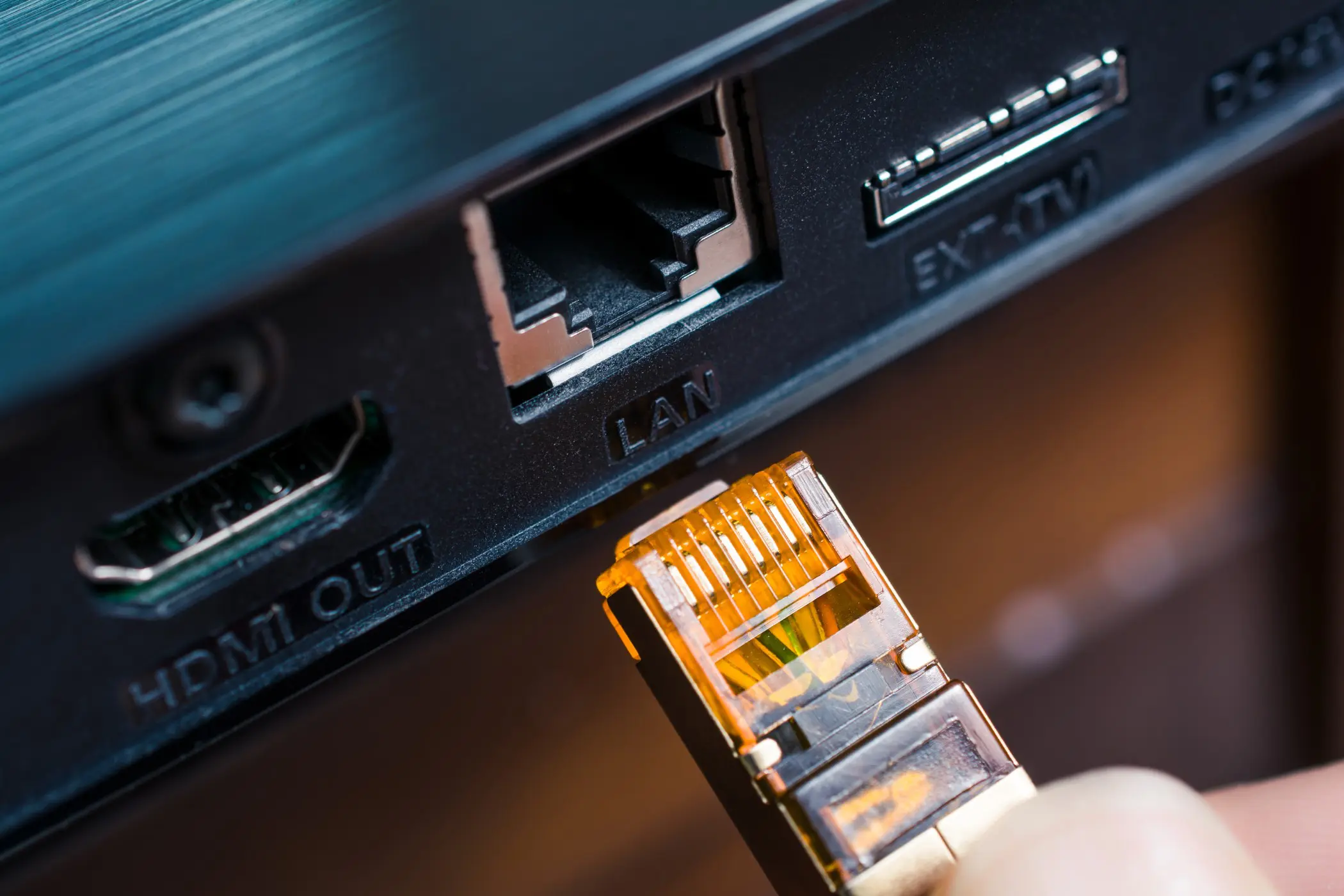
Special about the Ethernet cable, and therefore about the port, is that there is a plastic flap to click the cable into place so that it cannot be accidentally pulled out.
HDMI
HDMI is a port that you can find not only on laptops, but also on monitors, TVs, and amplifiers, among other things. It is therefore not surprising that HDMI is used to receive and send video and audio between different devices, such as a monitor and laptop.
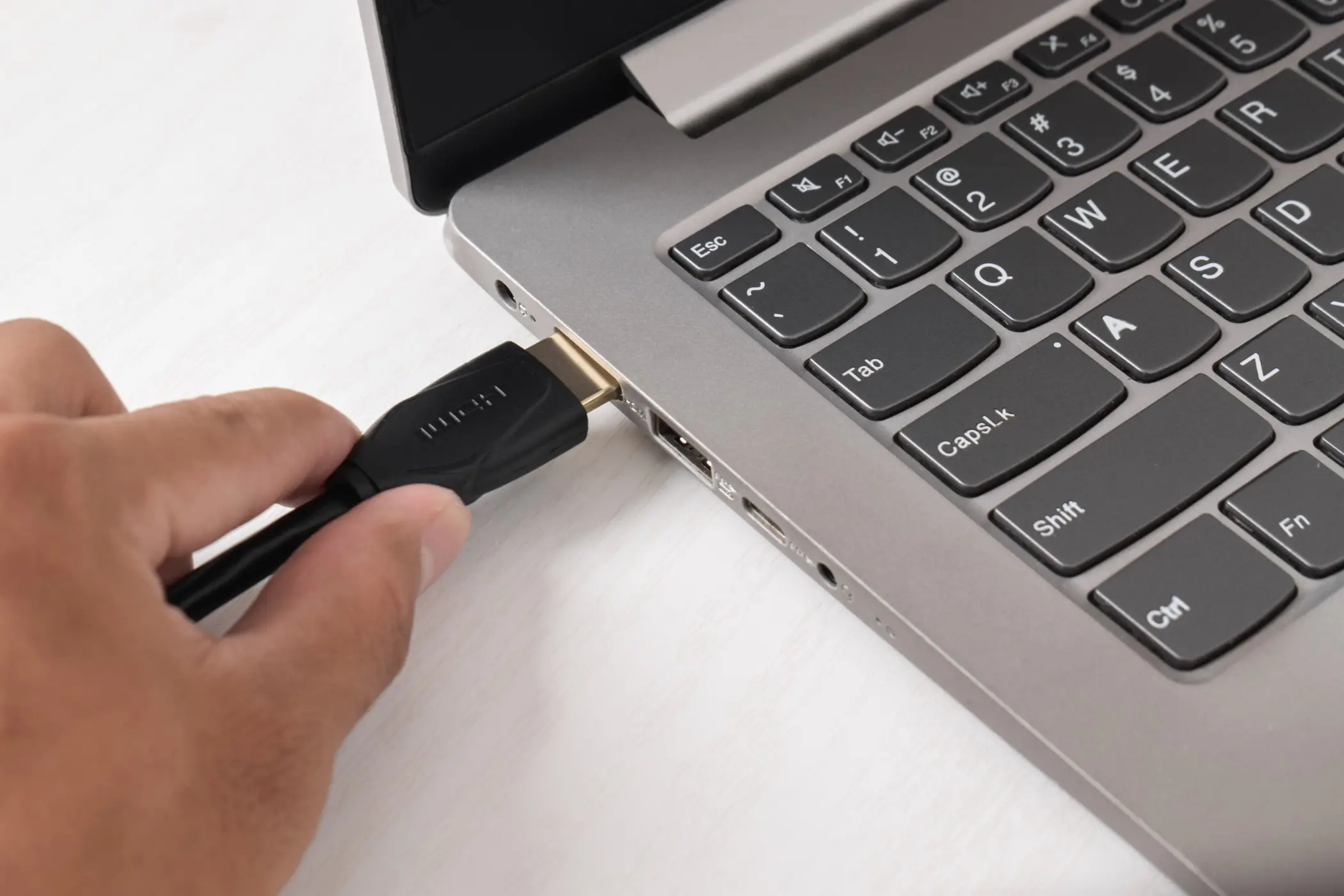
Over the years, different versions of HDMI have been released that have quietly replaced the VGA and DVI ports of yesteryear:
- HDMI 1.4: up to 4K at 30 Hz
- HDMI 2.0: 4K at 60 Hz
- HDMI 2.1 / 2.2: higher resolutions, higher refresh rates, and better support for HDR
Not every laptop with an HDMI port automatically supports the latest standard. That depends on the graphics card used.
Kensington lock
The Kensington lock is perhaps the odd one out. It looks like a port, but only has a security function. You can insert a steel wire into it and lock it; you attach the other end to the table or desk. That doesn’t guarantee complete protection, but it makes it very difficult for a thief.
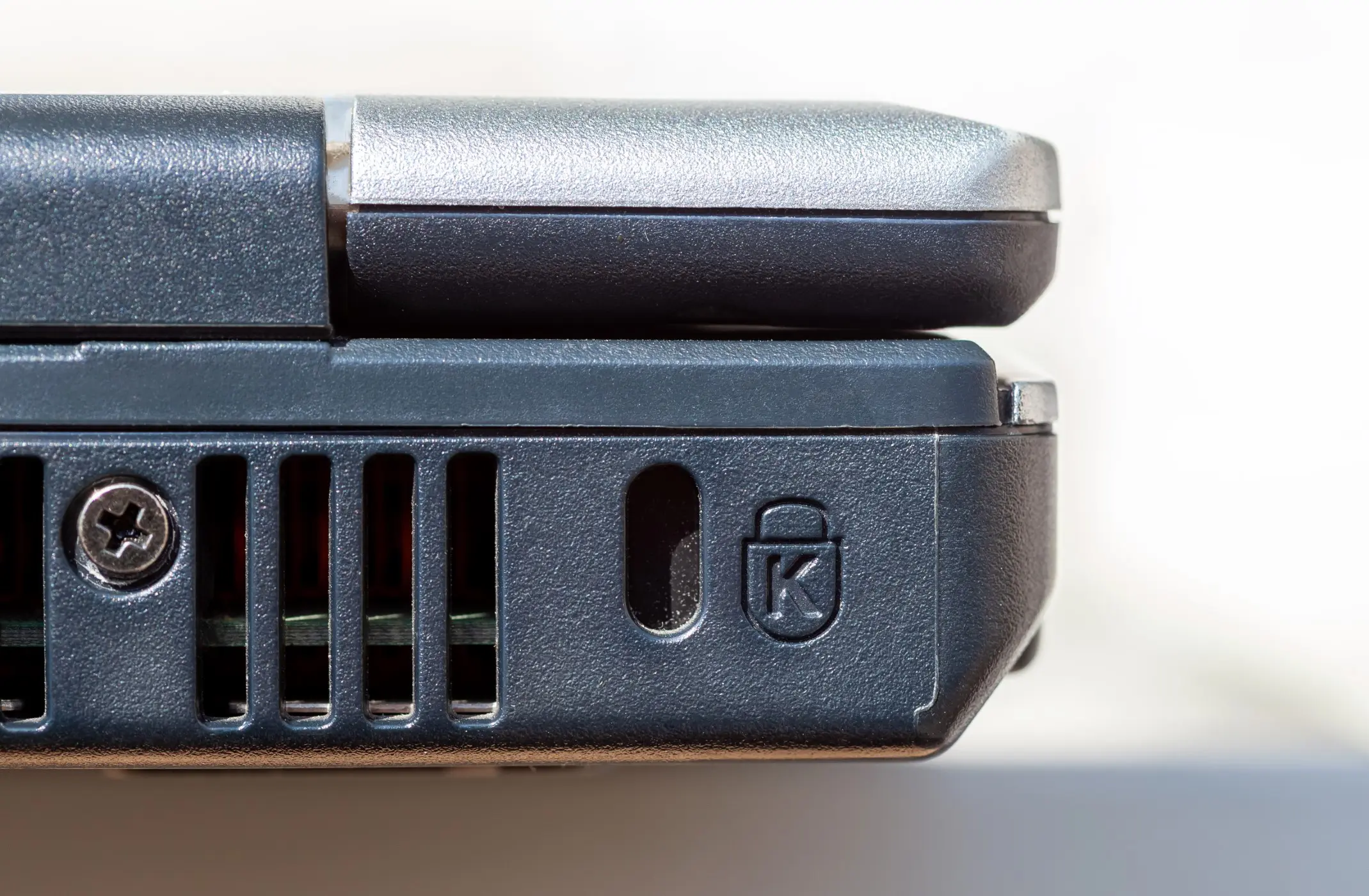
Please note: although you often find the port on laptops, you still have to purchase the steel cable yourself.
SD port
The SD card was previously mainly used by photographers or creative professionals. Many DSLRs or digital cameras still work with the card, and an SD port is an easier solution than purchasing a reader.
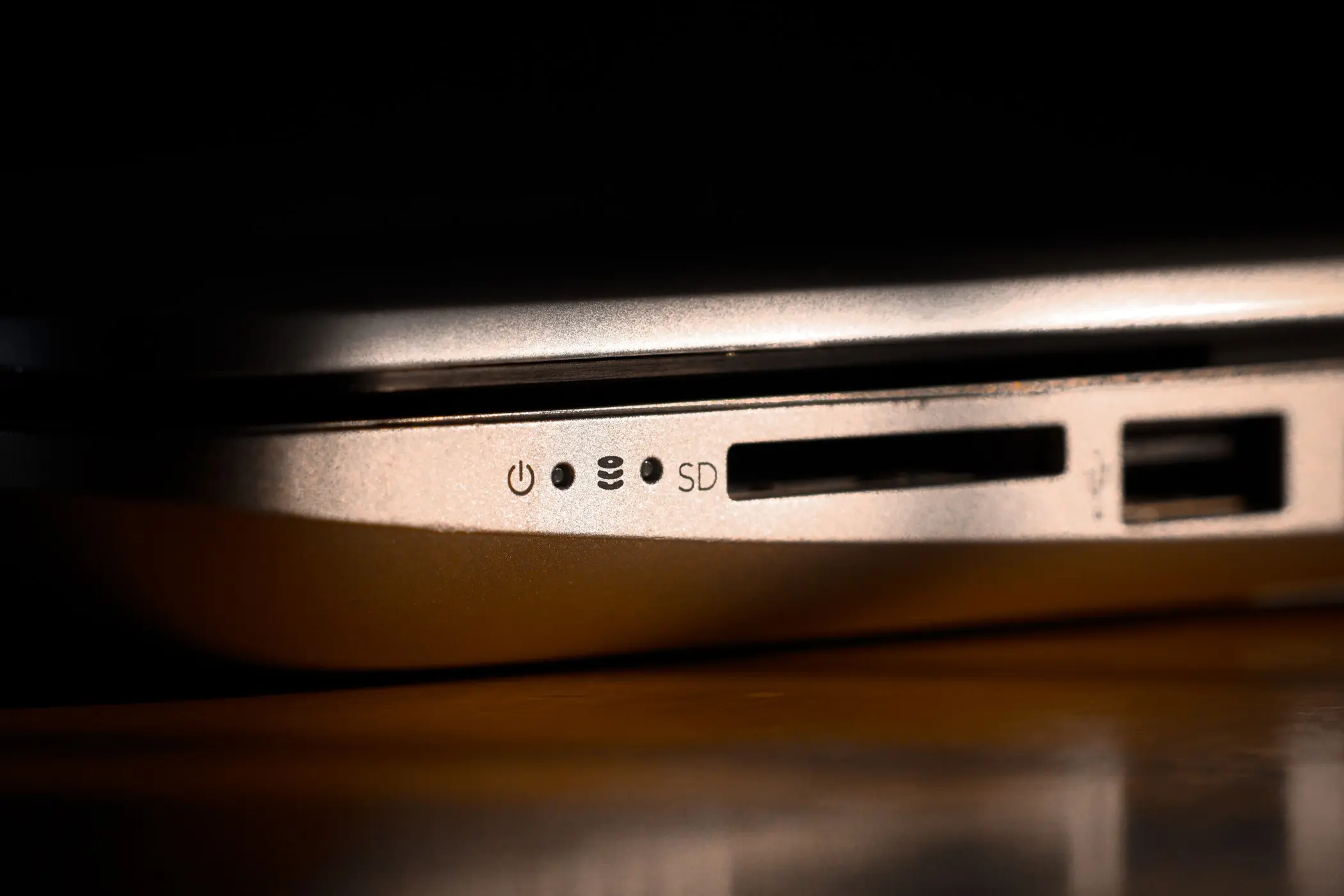
Over the years, its popularity has been undermined by faster and more secure data storage, such as MicroSD or SSDs that have enough with USB or USB-C. That’s why you don’t see these ports often on modern laptops anymore.
SIM card port
Some laptops are equipped with a SIM card port, allowing them to connect directly to 4G and 5G networks. This allows you to go online anywhere without being dependent on Wi-Fi. If you often commute for work, this is a major advantage in terms of flexibility and security.

It is important to know that not every laptop with a SIM slot actually has a built-in mobile modem. In some cases, the function must be activated separately.
USB
USB has been the most used connection for peripherals for years. Keyboards, mice, storage devices, and numerous other accessories can be connected via USB. The classic USB Type-A port is still widespread, although it is gradually being replaced by USB-C.
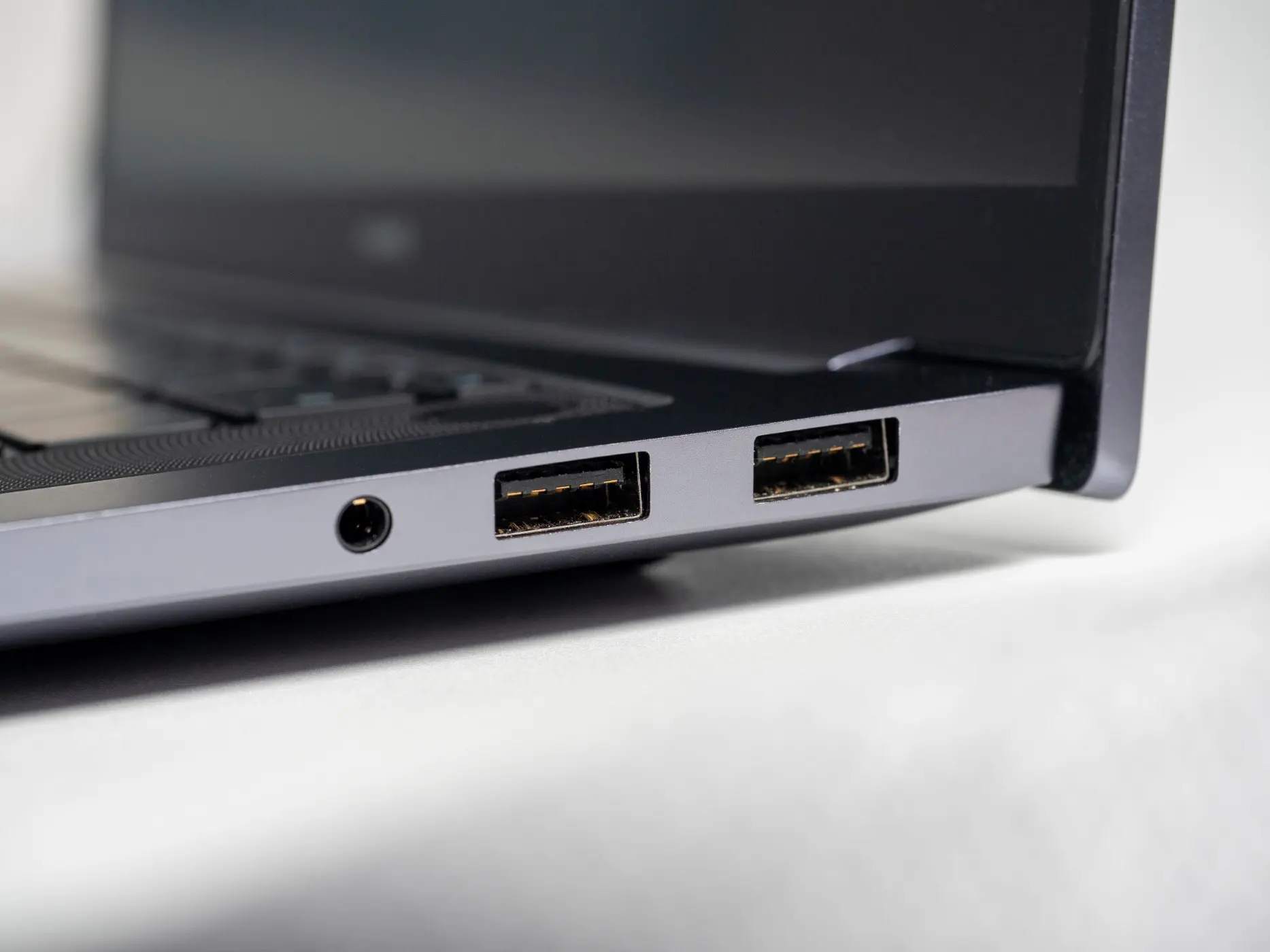
The speed of a USB port depends on the USB version used. Older variants are suitable for simple peripherals, while more modern versions offer much higher transfer speeds and are suitable for external hard drives and SSDs.
USB Type-C
USB-C is not a separate USB version, but a type of connector. What makes this port special is its promised versatility. Depending on the use case, USB-C can be used for data transfer, charging, video output, and even audio. This allows a single port to replace multiple classic connections.

The disadvantage of USB-C is that not every port offers the same possibilities. Two USB-C ports may look identical, while one only supports data and the other can also transmit image and power.