

Microsoft is investigating an issue where users of the classic version of Outlook are experiencing problems sending emails.
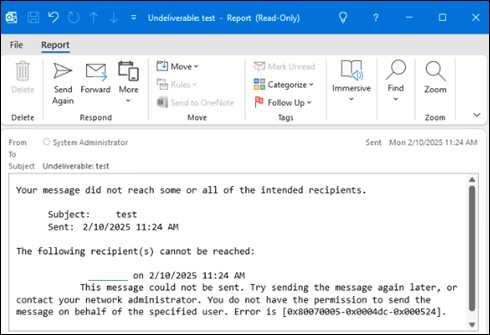
Those using the classic version of Outlook may encounter issues where emails are not sent correctly. Outlook then either provides a report stating the email could not be sent, or an error message indicating that the user does not have the correct permissions to send a message.
Microsoft is aware of the problem and is investigating it. Redmond has determined that the error occurs when the Outlook.com account you are sending from is part of an Outlook profile with a Microsoft 365 account, and that account has an Exchange Online mail contact with the same SMTP address.
Temporary Solutions
Microsoft has shared three temporary workarounds. For the first solution, you need to re-specify the sender of your email.
- Start a new email message.
- In the From field, choose the drop-down menu, select Other Email Address… and then From….
- Under Address Book: choose the Global Address List for the other Microsoft 365 account in your profile, select the email address for the account receiving the NDR and click OK, and then OK again.
- Send the email.
You can also bypass the problem by removing the Address Book of the Microsoft 365 account so that Outlook no longer checks it when you send an email.
- Select the Inbox of your Outlook.com account.
- On the Outlook ribbon, choose Address Book in the Find column.
- Choose Tools > Options > Custom.
- Remove the items containing Global Address List and click OK when you are finished. See also this forum post for more context: error is [0x80070005-0x000004dc-0x00000524].
Microsoft further suggests that you can limit the impact of the problem by hiding the Outlook.com contact in the Global Address List (GAL) of the Microsoft 365 account:
- Go to the Microsoft 365 admin center and log in with the Microsoft 365 administrator account.
- On the admin portal home page, under Admin centers look for Show all and then select Exchange.
- On the Exchange admin center home page, select Contacts in the navigation.
- Find the contact for the email address for which you are receiving the NDR and select it.
- In the Mail contact dialog box for that contact, look for the option Manage hiding from address list.
- Select Manage hiding from address list and choose the radio button to turn Hide from global address list to On , and click Save.
- To have Outlook apply this change, go back to your Outlook profile and select the Inbox of the Microsoft 365 account. On the ribbon, choose Send/Receive > Send/Receive Groups > Download Address Book and click OK.
- To check when Outlook has picked up the change, choose Home on the ribbon and then Address Book. Under Address Book: look up your Microsoft 365 account. Select the Offline Address Book for your Microsoft 365 account. When you see that the Outlook.com account is no longer displayed here, it will no longer cause an NDR when sending email.
If that doesn’t work, or if you find it too cumbersome, you can use Outlook on the web, or (temporarily) embrace the new Outlook. These issues do not occur in those applications.
Outlook has not been at its most stable in recent weeks. Previously, Microsoft had to fix an issue where Outlook crashed due to a Teams Meeting Add-In.
Do you use the new Outlook?
276 votes