

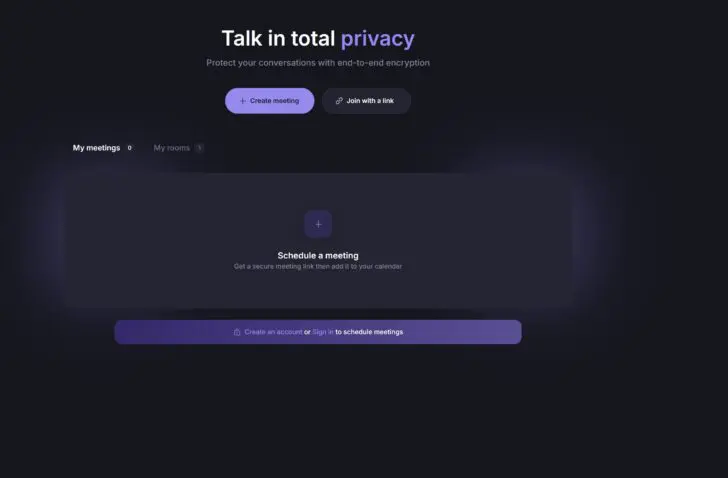
Want to meet without the hassle? Proton Meet lets you start a video meeting for free and without an account in no time.
The device used for this manual is set in Dutch. The text has been automatically translated. The exact name of settings may differ on your device.
Video meetings are a daily occurrence for many employees, but they often come with a lot of hassle. Especially when you need to call people outside the organization: you use Teams, but your conversation partner prefers Zoom. Proton Meet makes setting up a meeting simple because neither the host nor the guest needs to create an account to use the platform.
Proton has other tricks up its sleeve: the platform brings Swiss neutrality and banking secrecy to the world of video conferencing. Conversations are encrypted by default, and anyone can use it without having to create an account or install an app. The fact that Proton is European-made is an extra bonus in these turbulent times.
The Proton Meet app can be used as a standalone web application or as part of the paid Proton Workspace suite. In this guide, we show you how to use Proton without an account.
-
Step 1: Create a meeting (as host)
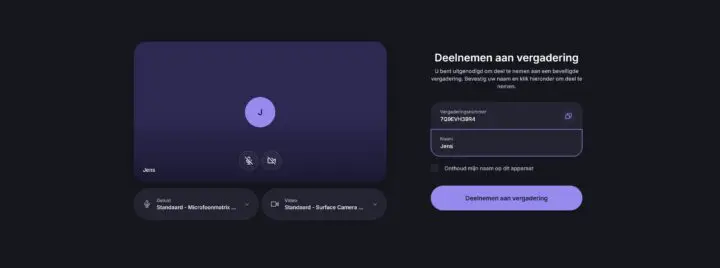
Creating a meeting with Proton Meet is easy. Go to meet.proton.me and click Start a meeting. As mentioned, you don’t need to create an account as a host to start a meeting. Clicking the Start an instant meeting button does exactly what it promises. Enter your name and start the meeting.
-
Step 2: Invite
Right now, you’re in the meeting alone. The more the merrier, so Proton gives you an invitation link. You can simply share this with others, just like a Teams or Zoom link. The free version supports meetings with up to 50 participants for up to 60 minutes. If no one joins the meeting room quickly enough, it will close automatically within ten minutes.

-
Step 3: Join a meeting (as guest)
As a guest, you don’t need to create an account either. Click the invitation link, give Proton permission to access your camera and microphone, and you’re in the meeting. The Proton interface will feel familiar if you regularly use Teams or Zoom. You can chat (without attachments), share your screen, and make a recording.

-
Step 4: Extra settings
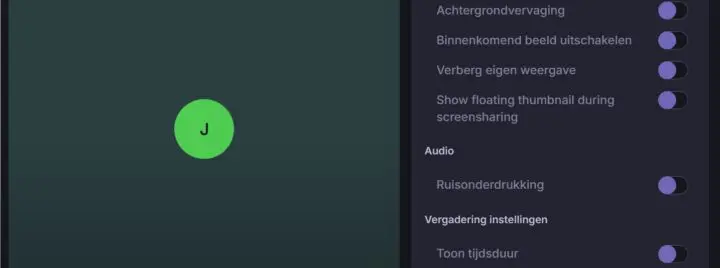
Via the settings (the gear icon), you can select additional video and audio options, such as noise cancellation, background blur, and making your own frame invisible or reducing it to thumbnail size. Proton prides itself on security: encryption is enabled by default for every conversation and chat. The host can also lock a meeting to new participants, but this feature is only available with an account.
-
Step 5: Schedule a meeting
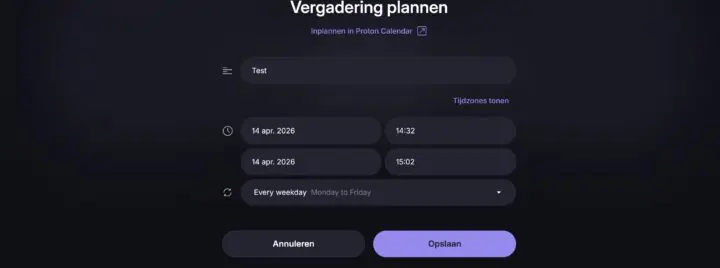
Want to plan ahead? With an account, you can create meeting rooms or schedule meetings in your calendar. Set the date and duration of the meeting and add it to your calendar. Proton realizes that not everyone will switch immediately, so it also lets you add your meetings to your Outlook or Google calendar. You’ll get a link to invite people, as described in step 2.
Creating and joining meetings feels very intuitive in Proton Meet. The meeting platform is not inferior in functionality to its better-known alternatives. The fact that you don’t need to create an account as either a host or a guest also means you don’t feel like you’re being sucked into an ecosystem.