
Microsoft OneNote is a note-taking app that allows you to capture text, images, audio, and video. It is a handy tool for taking, saving, or exporting notes.
There are several reasons why exporting a notebook in OneNote may be relevant, such as when switching to a new account, or to share notes with users without OneNote. In addition, some users like to have an extra backup in addition to just OneDrive. You can create an export of OneNote in a few simple steps and in various file formats.
Export notebook
To export a notebook in OneNote, start from the application on your PC or Mac. Open OneNote on your desktop and select a notebook. Then click
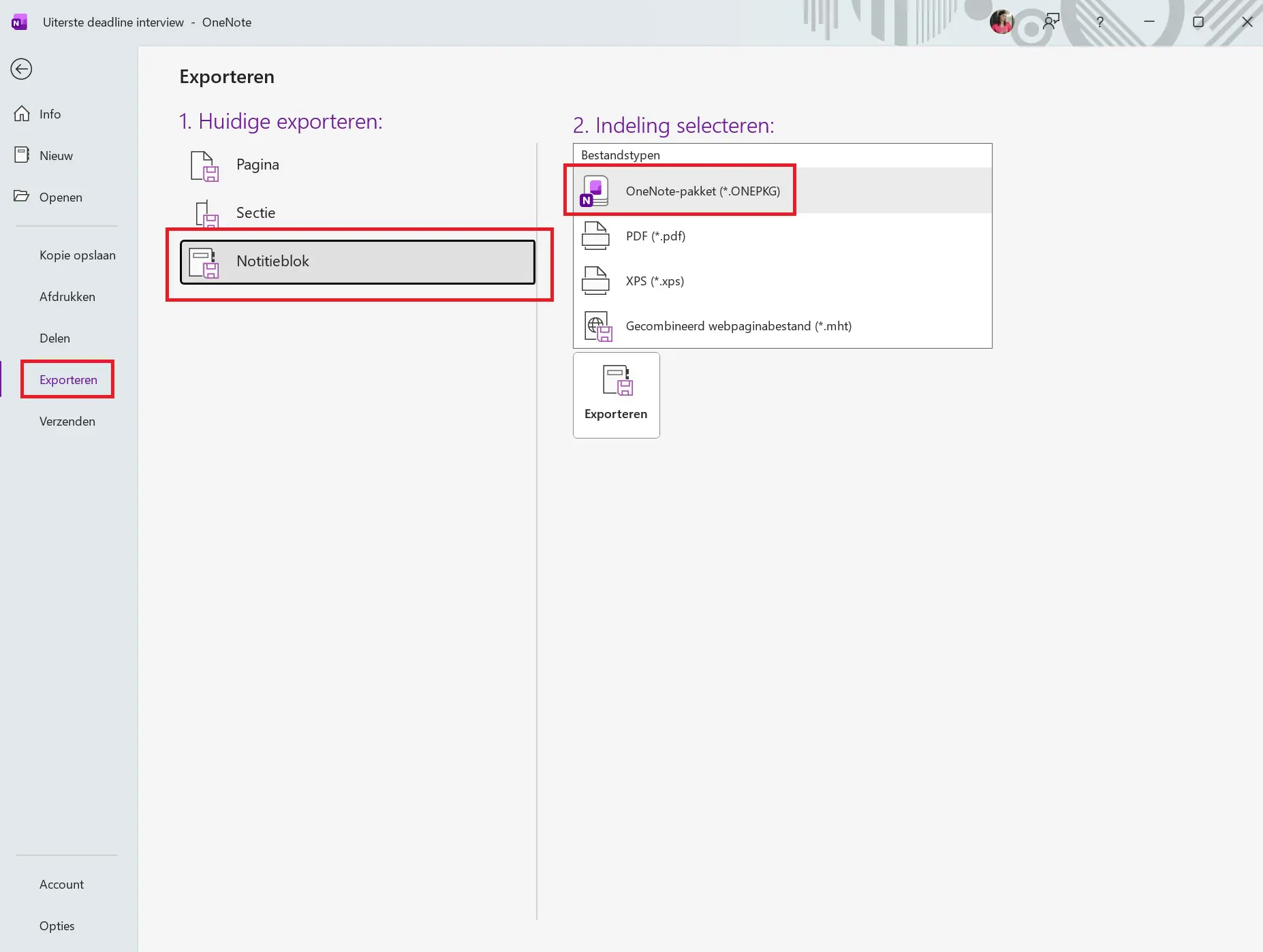
OneNote package
If you want to save your notebooks as an extra backup, it is best to choose the OneNote package (.onepkg). This format is also useful if you want to transfer the file to another OneNote account. Within this format, the entire notebook is saved (all sections and pages), and the structure is preserved. This keeps the document fully editable in OneNote.
PDF or Word
In addition to .onepkg, there is also the option to export the file as a PDF or Word document. This is especially useful if you want to share the information with colleagues who do not have OneNote. You can also edit the Word file further afterwards.
Import notebook
Do you want to import your export to, for example, your new account? Then open the .onepkg file on your computer, or right-click on the file and select Open with > OneNote. Afterwards, your notebook will automatically open in OneNote on your desktop. Make sure you are logged in with the correct Microsoft account.