Seek and ye shall find, except with Microsoft Outlook. A few simple tips can improve the search function and help you find e-mails faster.
Finding a specific e-mail in Microsoft Outlook can sometimes be quite a task. The search function regularly misses the mark. If you search by sender or topic, you often get old or completely irrelevant e-mails. After several attempts you give up and go looking for the right e-mail in your mailbox yourself.
Surely that can be better? Fortunately, a few simple tricks make the search function in Outlook far more effective. Here are five tips to search faster and smarter.
-
Tip 1: Turn off relevant results
Where Outlook often goes wrong is that the search function works on the basis of ‘relevance’. Outlook tries to estimate which e-mails are most relevant to you, based on your search query. That rarely matches what you would actually find relevant: to Outlook, an e-mail from 2023 can be more important than an e-mail you received yesterday.
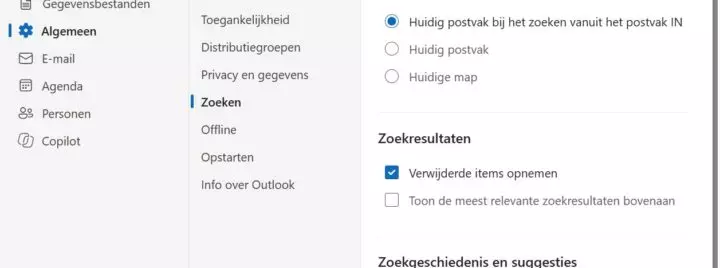
Fortunately, you can change this easily. Go to Search (under General) in the settings to give Outlook clearer instructions. Untick the box Show the most relevant search results at the top, which is ticked by default. Outlook should now sort e-mails chronologically. Why this is not the default, only Microsoft knows.
-
Tip 2: Set the perimeter
To find a specific e-mail, Outlook naturally needs to be able to search in the right place. You can set the search scope for Outlook yourself. Stay in the same search menu as in step 1. Under Search scope you can choose from three options: Current mailbox when searching, Current mailbox or Current folder. Here you can also set whether deleted items may be included in a search.
-
Tip 3: Use filters
These settings already help, but the secret to good search results lies in the query. Give Outlook as much information as possible about the email you want to find. To do so, add extra search filters to your query: the function is hidden in the search bar. You can enter the following details here:
- Search in (folders)
- From (sender)
- To (recipient)
- CC
- Subject
- Date (range)
- Read status (read/unread)
- Attachments (tick or untick)
The more you specify your query, the greater the chance that Outlook comes back with the right email.

-
Tip 4: Master search operators
Filling in this list manually for every search is a chore. As in Google, mastering search operators in Outlook is an art that makes searching more effective. Search operators are short commands that you add to your query to give the search algorithms instructions.
Outlook supports the following search operators, among others, which work both in your own language and in English: from:, to:, subject:, attachment:, received:, folder:, importance:, etc. Combining these search operators with AND and OR leads to more targeted searches.
Say you are looking for a monthly report that you sent to your colleague Jan Peeters last week. You can enter the following query in the search bar: from:”me” AND to:”Jan Peeters” AND subject:”maandrapport” AND attachments:”.pdf” and received:”20/10/2026”.

-
Tip 5: Retention policy (administrators only)
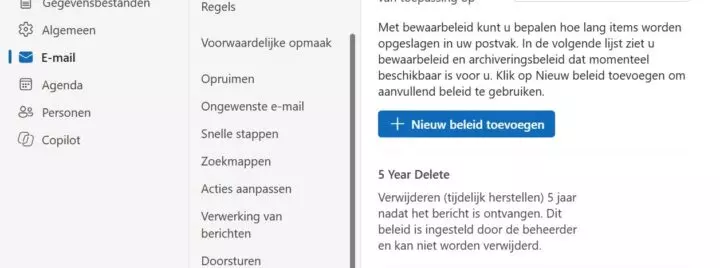
As a final tip, you can make the pond in which Outlook has to fish smaller. There may be good reasons to store e-mails for years, but the chance that you will still need an e-mail from five years ago today is rather small. Cleaning up your mailbox now and then gives you peace of mind and keeps old e-mails from needlessly surfacing in search results.
Nobody has the time or inclination to clean up a mailbox manually. Under Retention policy in the settings, the administrator of the Microsoft account can set how long e-mails must be kept. This ranges from seven days to five years. If some e-mails must not be cleaned up, you can set them never to be deleted.