

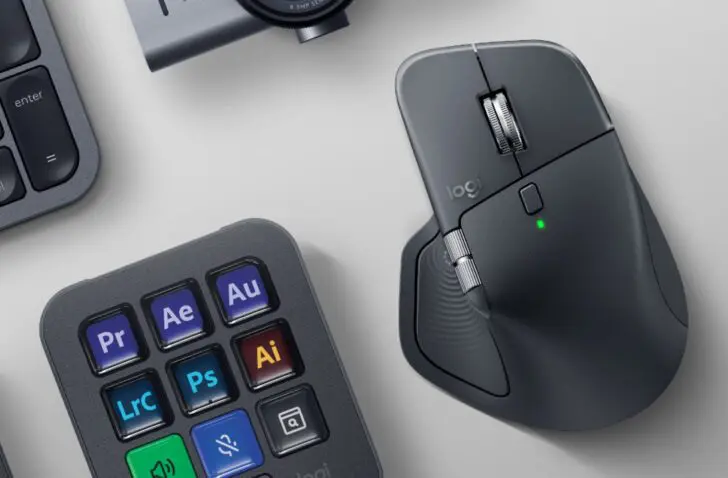
Anyone looking for the best ergonomic mouse always ends up with the Logitech MX Master 4. The latest addition, haptic feedback, is charming but only truly shines within specific workflows.
The Logitech MX Master series has been the benchmark for productivity mice for years. Once you get used to it, you never look back. With the MX Master 4, Logitech introduces its biggest update in years: haptic feedback, a new Action Ring menu, updated materials, and an extra thumb button.
The question isn’t so much whether it’s a good mouse—it always has been—but whether the innovations justify the upgrade for those who already own an MX Master 3S. In our view, they don’t, but much depends on your daily workflow. If you work constantly in the same tools as a creative professional, the Logitech MX Master 4 could potentially give your productivity a boost.
Compared to the MX Master 3 (or earlier), the upgrade is always worth it, if only for the silent clicking. Once you’re used to that, you’ll never want anything else.
New materials
At first glance, the Logitech MX Master 4 closely resembles its predecessor. Fortunately, the iconic ergonomic shape has been preserved. However, the material has received an upgrade. While the MX Master 3S was still largely covered in a soft, rubbery coating that discolored over time due to skin oils, the fourth generation features a harder matte plastic on most of the surface. Only the thumb rest and the right side where your ring and pinky fingers rest retain the softer material.


The result feels slightly less ‘warm’ than the 3S, but it should hold up better over time. The susceptibility to wear of previous models, especially the white version, was a major pain point. The new choice of materials is understandable. The mouse weighs 150 grams, a fraction more than the 141 grams of the 3S. In practice, you won’t notice the difference.
In terms of colors, you can choose between graphite or light gray. Incidentally, the Mac version is supplied without the compact Bolt USB-C receiver—those who want it are better off buying the standard version, which works just as well on macOS.
Haptic Feedback
The big new feature of the Logitech MX Master 4 is the haptic zone built into the thumb rest. It provides vibration feedback for specific actions, similar to a MacBook Pro touchpad or your smartphone. You feel a subtle tap when the mouse connects, when you switch between devices, or when you perform a gesture.
Is it necessary? No. Does it make the mouse more pleasant to use? No. As far as we’re concerned, the function adds no value if you use the mouse like a traditional mouse. Where is it useful? Within the new Action Ring menu: press the thumb button and a radial menu appears with shortcuts that you can assign yourself via the included Logi Options+ software.

The software has improved significantly over the years and offers extensive options: app-specific profiles, macros, button assignments, and Action Ring configuration. One side note: on macOS, the software requires extensive system access, including input monitoring. Those sensitive about privacy should know that Logitech requires quite a few permissions.
Action Ring menu
The Action Ring is the answer to the question: how do you make a mouse smarter without making it more complex? Through the radial menu, you get quick access to system functions, app-specific shortcuts, or even AI assistants like ChatGPT, Copilot, Gemini, or Perplexity. It’s a nice idea, though the added value varies per user. Those who have already optimized their workflow via the keyboard will use it less. For those who switch between applications frequently or perform regular repetitive actions, it can certainly save time. Do keep a learning curve in mind, as is the case with almost any new habit.
Also new is a third programmable thumb button, alongside the two that were already there. By default, it’s set to gestures, but via Logi Options+ you can customize everything to your liking—including app-specific profiles. The MagSpeed scroll wheel remains unchanged and is still wonderfully smooth: a quick flick lets the wheel glide rapidly to the bottom of a page, while slow scrolling provides tactile clicks for precision. No one does this better than Logitech.
Finally a USB-C dongle
The MX Master 4 can be connected via Bluetooth or via a USB-C Bolt receiver (finally USB-C instead of USB-A). You can pair up to three devices via Bluetooth and switch with the press of a button on the bottom.
The battery life promises up to 70 days on a full charge, and in practice, that seems realistic. After two weeks of intensive use, half the battery remains. Fast charging works incredibly well: one minute of charging provides three hours of use. The mouse can also be used while charging.

The 8,000 DPI Darkfield sensor from the MX Master 3S has been carried over and works on virtually any surface, including glass. In practice, you notice this most when you take the mouse on the go: it works flawlessly on a hotel desk, a wooden table in a cafe, or even on your trousers. A mouse pad is unnecessary.
Conclusion
The Logitech MX Master 4 is once again the best productivity mouse on the market. The haptic feedback and the Action Ring menu are an added value for certain workflows, the new material should address the wear and tear of previous models, and the USB-C Bolt receiver is finally here.
Those with an MX Master 3 get silent clicking and all the new features with the upgrade. Those who already have a 3S must weigh whether the haptics and the Action Ring add enough. In our workflow, there is no added value, but for creative professionals or developers, there might be a match.
For 119.99 euros including VAT, this is a mouse you will use daily for years. In 그 light, it is one of the better investments you can make for your workspace.
Pros
- Haptic feedback feels good
- Action Ring software offers smart features
- More durable material that discolors less quickly
- USB-C Bolt receiver finally in the box
- Works on virtually any surface, including glass
Cons
- Logi Options+ requires extensive system access (especially on macOS)
- Mac version without Bolt receiver for the same price
- Limited upgrade for those who already own an MX Master 3S