
Share an email from Outlook in Teams in just a few clicks, and vice versa. This allows you to quickly provide context to your colleagues without forwarding endless emails.
Did you know that you can easily share emails in Microsoft Teams and vice versa? Microsoft Teams and Outlook are closely linked in this regard. In just a few clicks, you can share emails in a Teams message, but also the other way around. This way, you can give context to your colleagues faster without the cumbersome copy-paste, and you don’t have to forward endless emails.
Share Outlook in Teams
When you want to quickly provide context to your colleagues, without involving them in a long email chain, it can be useful to forward the email in question via Teams. To do this, open the email you want to share, and click on the Teams icon in the top right corner. You can also open the email message and click More actions > Share to Teams.

You can then add an optional message to provide more context to your email. Are there any attachments involved? These are automatically included in the email, unless you remove them before sending them to Teams.
Share Teams in Outlook
Conversely, it is of course also possible. From Microsoft Teams, you can share a copy of a chat message via Outlook. To do this, click on the chat message you want to share and then on the three dots. A menu appears in which you can select Share in Outlook.
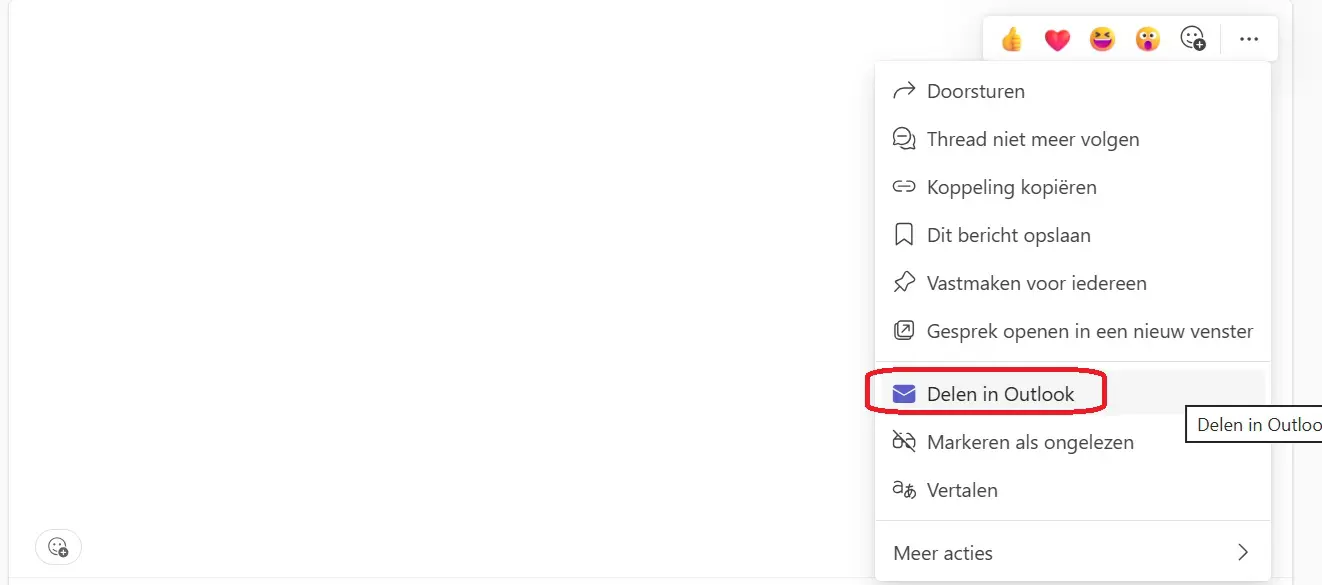
Do you want to share an entire channel conversation? Then click on the More options > Share to Outlook button in the channel conversation. You can then enter the recipients and send the message. When you send a channel conversation, you also immediately share the entire conversation history.