
Are you experiencing Bluetooth issues on your Windows device? Microsoft is launching a guide with potential solutions for Windows 10 and Windows 11.
Is the Bluetooth icon or switch invisible or grayed out? Can you no longer turn Bluetooth on or off, or do the Bluetooth options no longer appear? According to Microsoft, these problems can occur for various reasons, such as incorrect Bluetooth settings, outdated drivers, stopped system services, or problems due to recent Windows updates.
Therefore, the company is publishing five solutions for Bluetooth problems in Windows 10 and 11.
-
Automatic Bluetooth troubleshooter
A first reflex is to let Windows search for and solve the problem itself. To do this, open the ‘Get Help’ app via this link. After you have given permission to run an automated test, Windows will get to work.
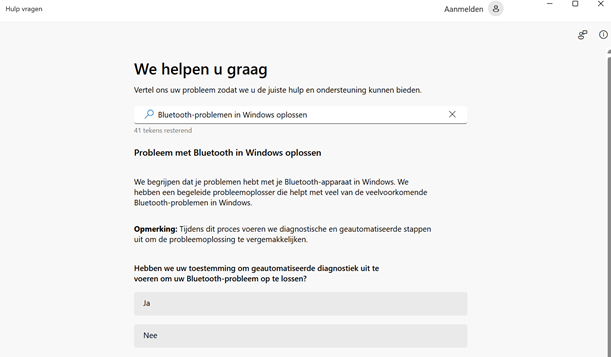
You will be presented with some questions to map the problem. Still not getting the answer you are looking for? Then check one of the options below.
-
Bluetooth drivers
If you have recently switched to Windows 11 or made updates, your current Bluetooth driver may not be compatible. You can check this by following the steps below.
Navigate to Start > Device Manager > Bluetooth. Then click on the name of the Bluetooth adapter, which usually contains the word “radio”. Right-click on the Bluetooth adapter and select Update driver > Automatically search for updated driver software. Then you need to follow a few steps.
Then you can install the updated driver. Afterwards, click Start > Power > Restart. Finally, check if the problem is solved after your PC has restarted.
-
Airplane mode
Another possible culprit is airplane mode. This mode automatically turns off Bluetooth. So be sure to check that this function is disabled. Click Windows + A to open the quick settings and check if airplane mode is disabled.
-
Check Windows updates
Are you behind on Windows updates? Then it is recommended to update your updates. Select Start > Settings > Windows Update. Then click Check for updates. You will then get an overview of available updates that you can install.
-
Restart PC
The miracle cure for almost any problem: restart your PC. It is possible that the Bluetooth problem will be solved immediately with this simple action.
If no solution works, consider contacting Microsoft’s help desk.