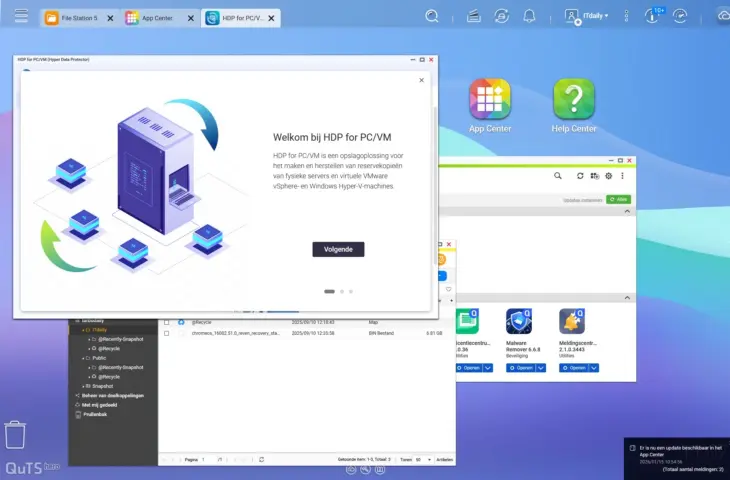
A NAS is more than just a storage server. What you get out of it depends on what you put into it. With the right approach, you can seamlessly integrate your NAS into the various facets of your daily work. We offer five tips.
You have purchased a NAS. After careful consideration, you have brought the perfect device for your situation into your home, but what now? Initially, a NAS is a storage server that you surf to via a web interface. There you get a range of possibilities. On the devices of the most prominent manufacturers, the web interface is so extensive that you essentially log in to a fully-fledged Linux-based desktop system.
That creates powerful possibilities, but for those who want to work efficiently, an extra network computer that you have to surf to each time is not necessarily an added value. A NAS only really comes into its own when you integrate it into your daily workflow. We provide tips that apply to all NAS systems from the main manufacturers, but use Qnap’s solutions as a concrete example.
1. Integrate through a network drive
NAS stands for Network Attached Storage: network storage. Operating systems of NAS devices, such as Qnap’s QuTS, contain a handy file explorer. Nevertheless, it is cumbersome to manage files via the browser every time.
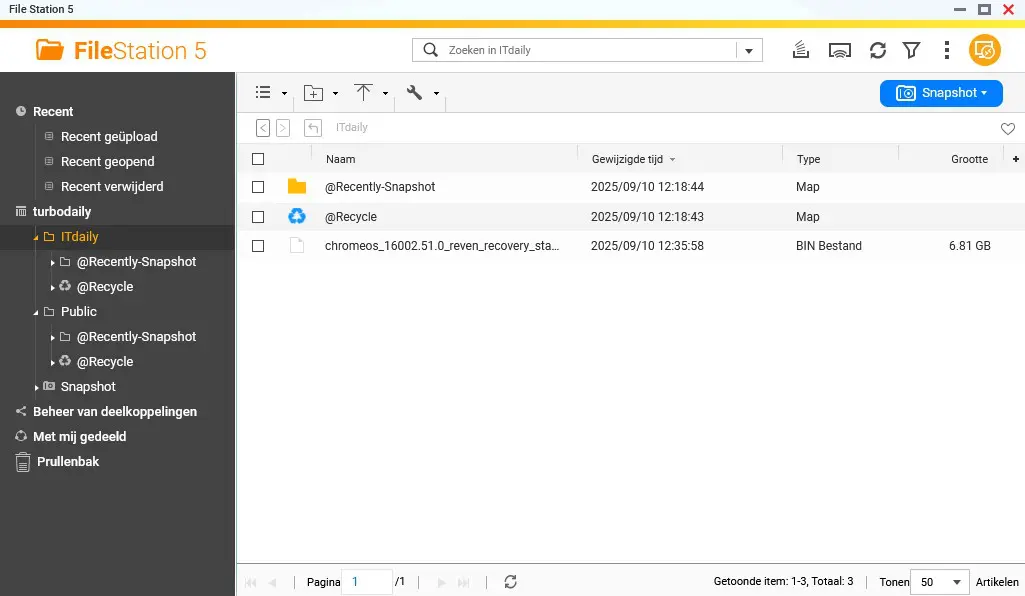
It is much more convenient to add one or more folders as a network drive. This way, the folders are directly available within Windows or MacOS when you are in the office. You can add a network drive via your computer. You will need your NAS password for this. Once the link has been made, you can manage files at will via your PC. The storage of the NAS is thus conveniently nestled between your local folders.
2. Back up to your NAS
With a NAS in your network, it is almost self-evident that you set up a backup of PCs to the device. Here too, the trick is to integrate the backup task into the daily workflow. Making manual backups cannot be the intention: it is much better when a PC automatically backs up periodically when the NAS is nearby.
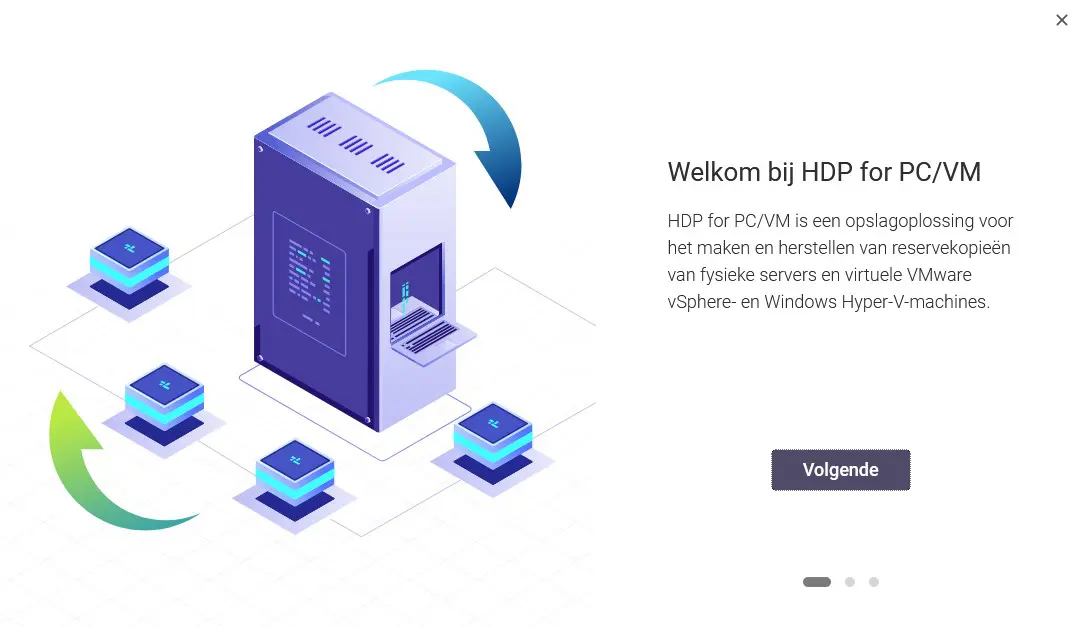
To back up a Windows computer (or server) to a NAS, you must install an agent on the PC. That is a small tool that can manage the backup task. Then it is a matter of linking PC and NAS, and determining the details of the backup task. This way you can choose which folders you want to secure and how often. Deduplication on the NAS ensures that available storage is used efficiently for most solutions.
Qnap brought its entire backup range under a new brand name at the end of last year: Hyper Data Protection or HDP for short. To secure a PC to a Qnap NAS, you must install the HDP PC Agent and log in to your NAS with it.
3. Link with cloud services
You can not only integrate your NAS with your laptop or desktop, but also with the cloud. The largest NAS providers all offer services to synchronize Microsoft 365 with the NAS, for example, but Qnap goes a step further by also making synchronization with personal OneDrive or Google Drive accounts possible. That implementation is unique.
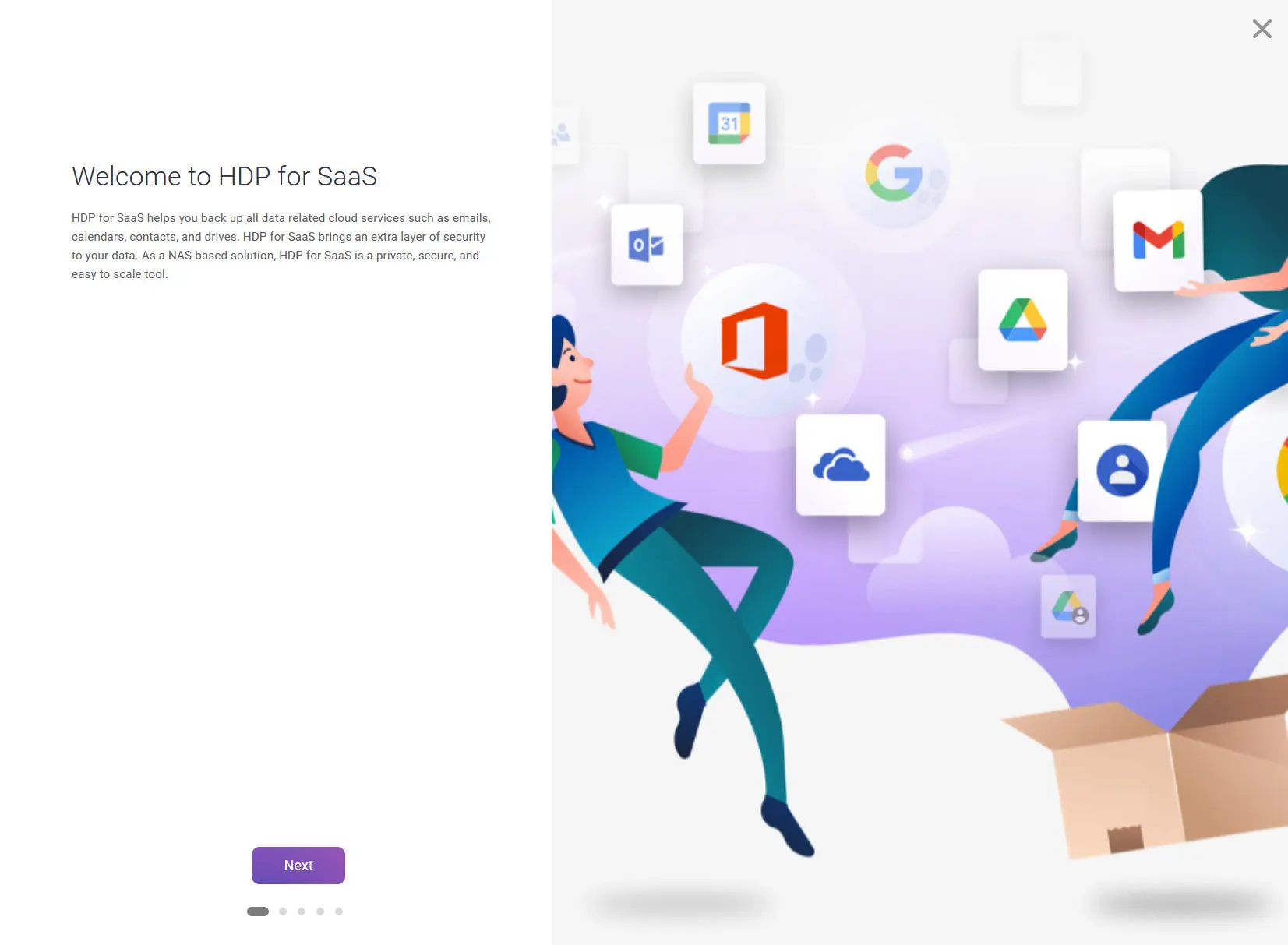
Data that is only stored with a cloud service is not safe. One problem with OneDrive or Google Drive, and you can lose files. That is not a hypothetical scenario. By integrating the cloud services with your NAS, you ensure a backup of your most important files according to the 3-2-1 rules.
4. User management
Set up your NAS correctly immediately, and create user profiles for everyone with access. All NAS manufacturers provide the possibility for detailed user management in their software. This way you can add people with the correct roles and access rights. After all, it cannot be the intention that the intern also gets access to the folder with customer contracts and quotations.
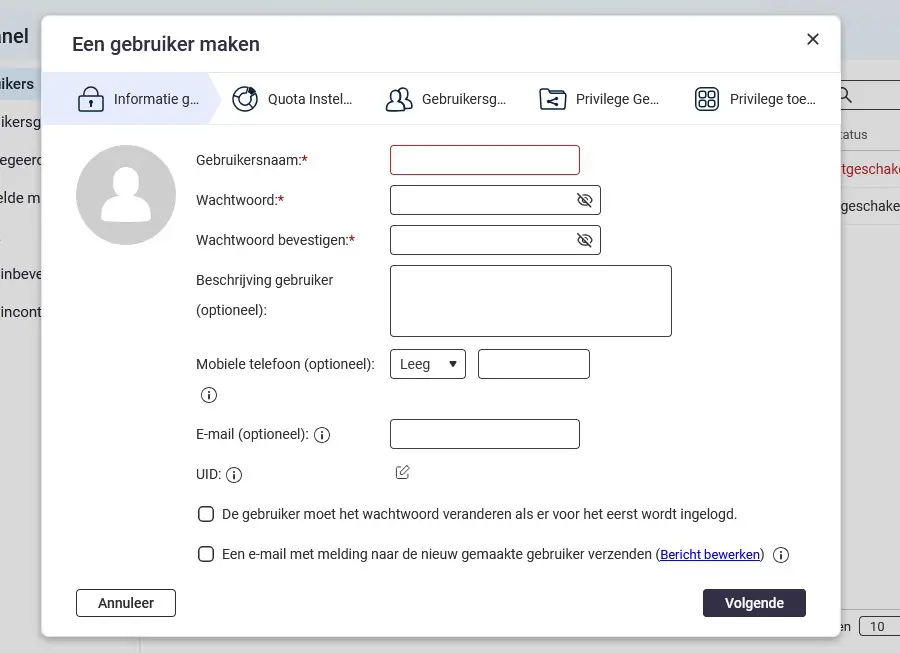
You can integrate your NAS for access management with your existing environment. For example, it is possible to set up a link with Microsoft Entra Domain Services, so that users can log in with their Microsoft Entra ID. On Qnap, this is possible from QuTS 5.2.7 or later.
5. Get started with applications
What else you can integrate your NAS with depends on your needs. The major NAS players all have a large application store, from which you can download extra functionality. For example, it is perfectly possible to run an alternative to Google Photos locally and manage images. For videographers, the option to set up their own media center may be attractive.
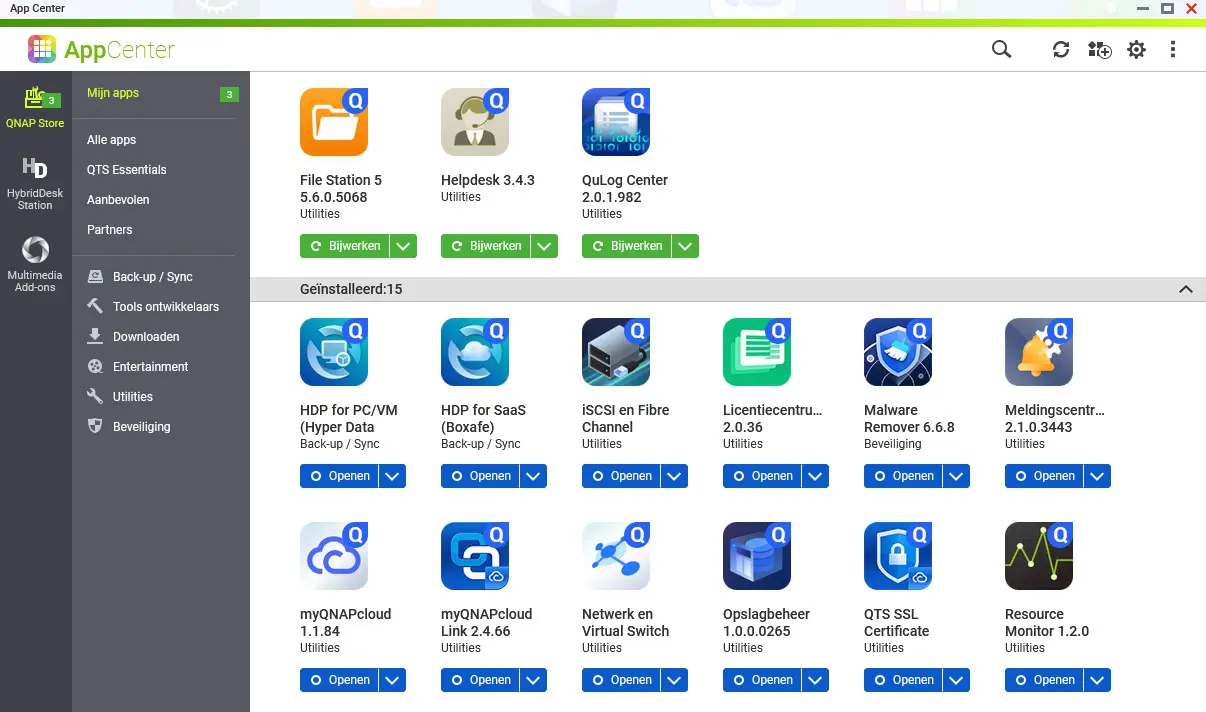
When it comes to applications, don’t just think of apps on your NAS itself. Also take a look in the App Store from Apple or Play Store from Google for the available apps from your NAS manufacturer. Usually you can download apps to use the main functionality of your device on the go. A file management app is very handy, so you can access your files on the NAS from virtually anywhere.
Integration as the key to success
A good NAS can be the digital nervous system for your sole proprietorship, SME or team. However, the key to success is integration. Nobody wants to constantly switch context to bring tasks to a successful conclusion. A good IT solution is part of your natural workflow, and that is no different with a NAS.
So ensure thoughtful management of users, linked to an existing SSO solution such as Microsoft Entra ID if applicable. Build a logical folder structure, and add the most relevant locations as a network drive for users. Invest some time in the installation of agents for backups and set up a schedule that works neatly in the background.
Furthermore, do not forget that a NAS is not directly opposed to the cloud, but can be a supplement to it. For example, link existing cloud storage to guarantee extra availability of important files. For a NAS with an extensive operating system, that is only the beginning of the possibilities, but it does form an important foundation for seamless use.
This is an editorial article in collaboration with our partner Qnap. The text is editorially independent, but the examples come exclusively from Qnap.